Joker123 download: installing the Joker app and finding your way round its menu
Joker123 was offered as an iPhone app and an Android APK. How to get the current one, install it cleanly, and what each entry in the left menu leads to.
Cartridge label
- Old builds (2018 page)
- iPhone iOS, Android APK
- Menu entries
- All Games, Coming Soon, E Casino, Multiplayer, Single Player, Slot Games, Tournament, Live Games
- Balance shown in
- MYR
- Files hosted here
- None
Controls
- All Games
- Every title in one grid
- Multiplayer / Single Player
- Splits shared-table games from solo ones
- Tournament
- Games running a leaderboard event
- Trophy icon (top)
- Next to the balance; opens rankings or events
Joker123 is the black-and-gold app with the big JOKER wordmark. The old page kept it short: one iPhone build, one Android APK, nothing for PC. Both files have been removed from this site, and here is how to get the app on your phone today without picking up something you did not want.
Where to get the Joker123 app
Joker123 has its own IDs, separate from 918Kiss and Mega888, and the app only logs in when its version matches the server. Old installers stop working after an update, and copies from random mirrors are an unknown quantity.
The fix is to get both from one source: ask for a Joker123 game ID and the matching app link.
Installing Joker123, step by step
On Android
- Uninstall any older Joker or Joker123 app.
- Open the link in Chrome or your usual browser.
- When Android says the browser cannot install apps, allow it for this one file.
- Install and open.
- Go back to Settings and remove that browser's permission to install unknown apps.
On iPhone
- Open the link in Safari, not inside a chat app's built-in browser.
- Wait for the icon to finish installing.
- Go to Settings > General > VPN & Device Management and trust the Joker123 developer profile.
- Open the app.
The Joker123 lobby menu
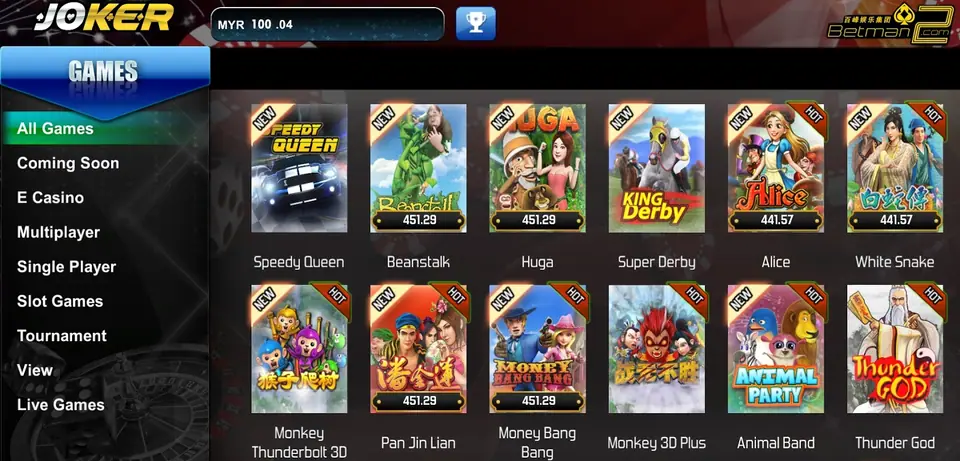
After logging in you see the Joker logo top left, a balance box in MYR next to a trophy button, and a menu under GAMES down the left side:
- All Games and Coming Soon
- E Casino for table-style games
- Multiplayer and Single Player
- Slot Games
- Tournament
- View, which changes the tile layout
- Live Games for dealer tables
Tiles carry NEW or HOT tags and a jackpot figure along the bottom. In this capture: Speedy Queen, Beanstalk, Huga, Super Derby, Alice, White Snake, Monkey Thunderbolt 3D, Pan Jin Lian, Money Bang Bang, Monkey 3D Plus, Animal Band and Thunder God.
The Multiplayer and Single Player split is the useful part. Multiplayer games, such as the fish tables, share a room with other players; single-player ones are just you and the machine.
Joker123 faults
- Stuck on the Joker splash: cannot reach the server. Try mobile data instead of Wi-Fi, or the reverse.
- Tile opens then closes: the game failed to load its files. Free up storage and retry.
- Installed from a chat app link and nothing happens on iPhone: reopen the link in Safari.
- "Update required": remove the app and install from a new link. The balance is kept on the server.
The Joker123 overview lists what else is in the catalogue. Beanstalk and Alice from the grid above have their own pages.
Troubleshooting and questions
What is the number under each Joker123 tile?
It is a running jackpot figure for that game, shown in the lobby so you can compare before opening one.
Can I use Joker123 on a PC?
The 2018 page had no Windows file, only iPhone and Android. Ask your provider whether a browser or PC option exists now.
Press start
Want to play it yourself? Get a game ID through our partner link, then set a spending limit before the first round.